


Facebook 101: Claiming the Unclaimed
May 3, 2013 - David Hall
Category: Social Media Marketing
After years of resistance, you’ve finally decided to start a Facebook page for your practice. Problem is, where do you start? You are already familiar with Facebook for your personal use, but a Facebook business page, you soon realize, is a whole different animal. Before you even start, there is something you need to know: You probably have a page already. If your office has been around awhile and has a decent number of tech-savvy patients, it’s highly likely that you already have one or more unclaimed pages floating around on Facebook. These pages are valuable to you because in most cases, they already have likes and check-ins. I even had one case where a dentist didn’t think he had a Facebook page, but when I scoured Facebook, I found our that he indeed had an unclaimed page with 57 check-ins! If you have more than one page you have to claim each one separately then merge them later. To claim a page, you have to first prove you’re a representative for the company. Here is the step by step guide:
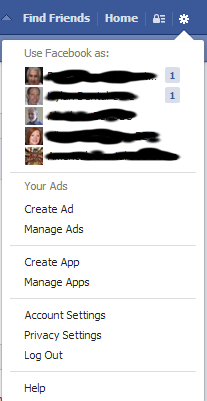
- Log into Facebook as yourself: You will manage your business page by logging into your personal account but they are separate entities. You will be able to switch back and forth between managing your personal and business pages without one affecting the other in any way.

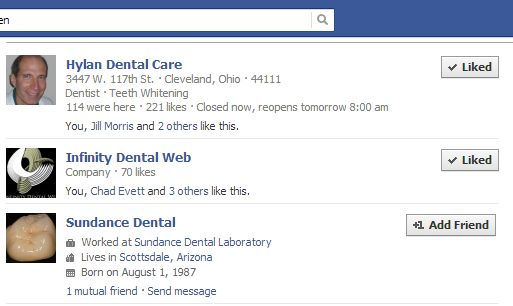
You can manage multiple pages from this task bar button. - Find your business: Use the Facebook search tool to find your business. If you can’t find your business by it’s current name, try any past names it may have had. Additionally,try your website name or, if you’re a dentist, your own personal name. Try doing this several times at different times of day. Facebook search is quirky and often pulls up different information at different times. If you can’t find your self anywhere, skip ahead to setting up a Facebook business page.
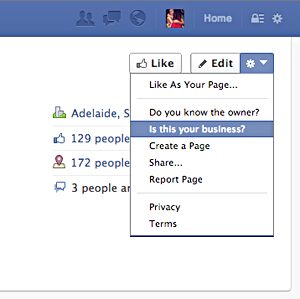
Use Facebook’s search tool to find an unclaimed page. - Once you find your page(s), click on the gear symbol right next to the number of likes and scroll down to “Is this your business?”.
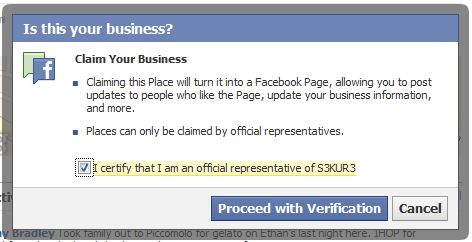
- Claim that you’re an official representative for the business.
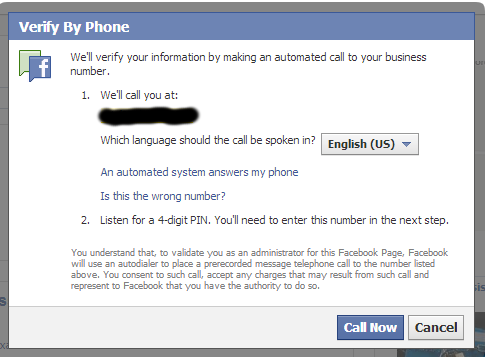
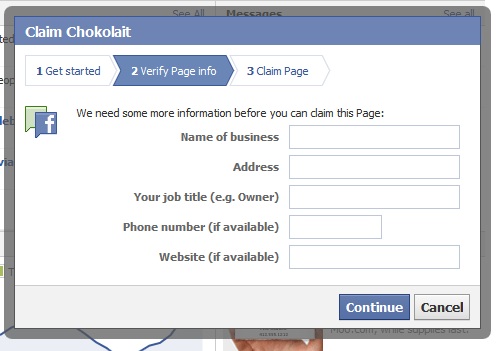
- Now, one of two things may happen: If whoever made your page took the time to provide your business address and phone number, you will be asked to verify your business with a business e-mail or a phone call. I usually find the phone call easiest. Facebook’s automated system calls you and you have to listen for the 4 digit pin then enter it. If the person who created your page did not provide address and phone information, you will be asked to provide that along with a scanned phone or utility bill with the name and address of your business. Facebook will let you know if you’ve been verified by e-mail. This can take a few days.
Claim with a phone number. Or claim with address and documentation. - Once you’ve received the e-mail from Facebook, you now have administrative access to your page. Next step is optimization and customization or branding.
Read next week’s article: Setting up your Facebook business page.